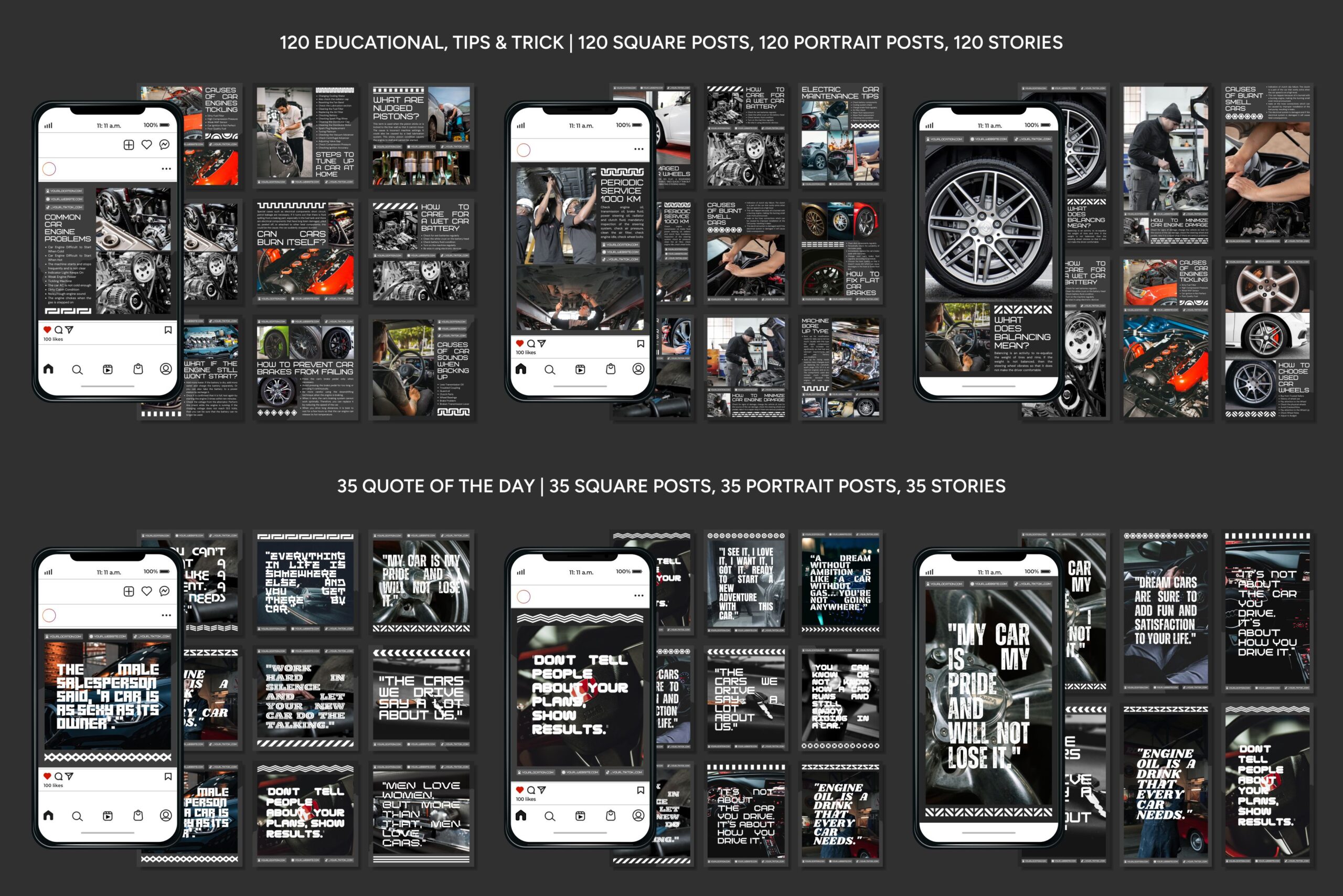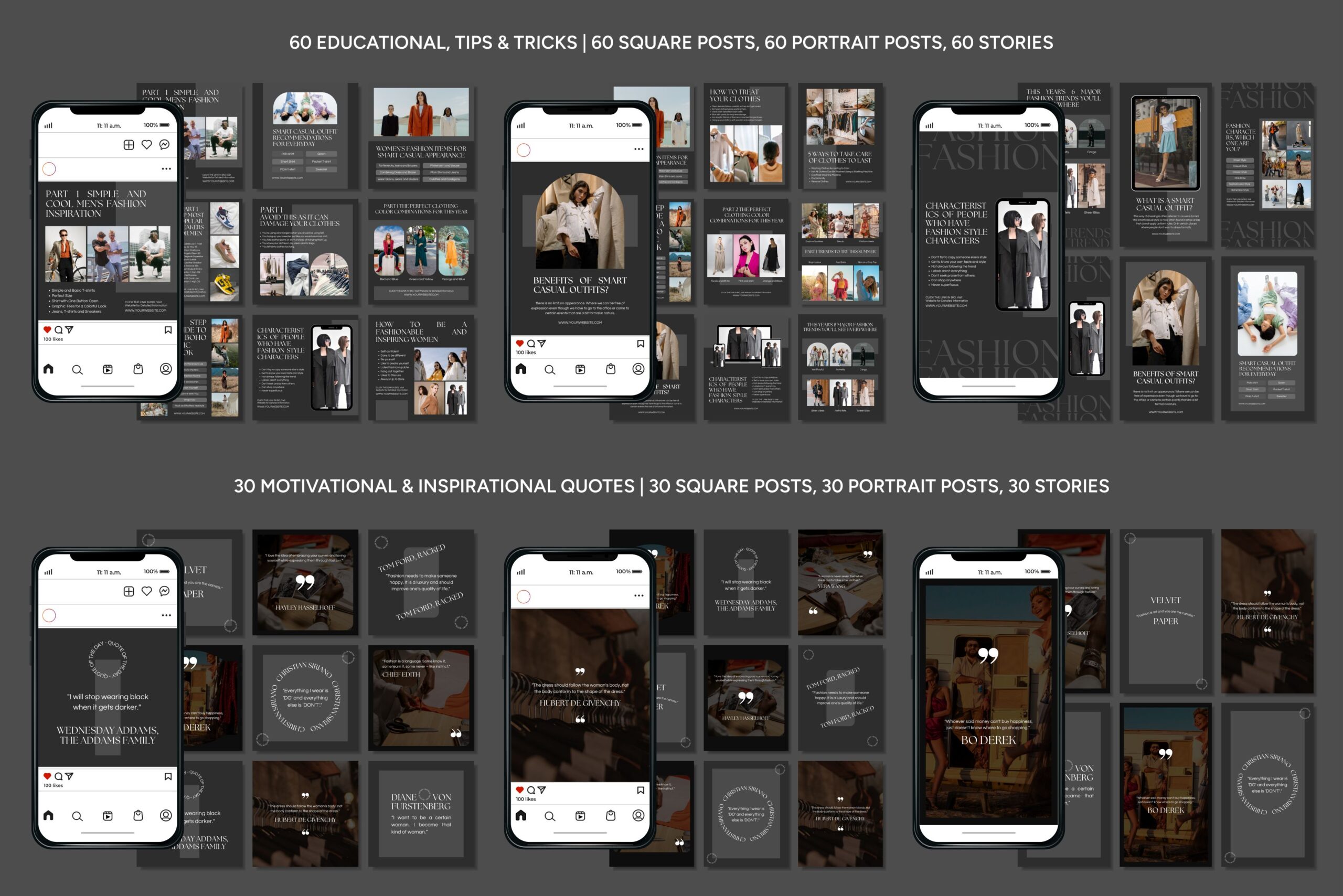

How To Edit Our Social Media Templates In Canva
How To Edit Our Social Media Templates In Canva, this is a simple process once you know how template links work, where to customize the design, and what to check before you publish. Whether you bought a template pack from a designer, downloaded a free bundle online, or received branded assets from a marketing team, Canva makes it easy to turn a pre-made layout into content that fits your brand and goals.
Third-party templates are popular because they save time. Instead of starting from a blank canvas, you begin with a professionally designed post, story, carousel, or ad graphic. The challenge is knowing how to edit it properly without breaking the design or creating inconsistent branding. The good news is that even beginners can update fonts, colors, images, and text with just a few clicks.
Why Our Canva Templates Are So Useful
Using a social media template can dramatically speed up content creation and save time. Many business owners, creators, and marketers choose them because they:
- Reduce design time
- Create a polished, professional look
- Help maintain visual consistency
- Provide ready-made layouts for different platforms
- Make it easier to produce content in batches
These templates are especially helpful for people who want high-quality content but do not have advanced design skills. Instead of worrying about spacing, hierarchy, and alignment from scratch, you can focus on adapting the design to your message.
What You Need Before You Start
Before editing any template, make sure you have a few things ready:
- A Canva account
A free Canva account works for many templates, but some designs use Pro elements. If a template includes premium fonts, images, or graphics, you may need Canva Pro or you will need to replace those elements. - The template access link
Social Network Designs provide a Canva link that says Access design.” This link opens a copy of the original template in your own Canva account for editing. - Your brand assets
Prepare your logo, brand colors, fonts, website URL, and any images you want to use. Having these ready will make editing faster and keep your content consistent. - Platform dimensions in mind
Confirm whether the template is designed for Instagram posts, stories, Pinterest pins, Facebook posts, or another platform. Editing is easier when you know the final use.
How To Edit A Social Media Template In Canva Step by Step
Once you have access, the editing process is straightforward.
Open the template link
Click the access link provided by the template creator. Canva will usually prompt you to choose “Use template for new design.” This creates your own editable copy. You should avoid editing the original file directly, if possible.
Review all pages in the design
Many social media template sets come with multiple pages. Scroll through them before changing anything. This helps you understand the style, layout patterns, and intended use for each page.
Look for:
- Post templates
- Story templates
- Cover slides
- Quote graphics
- Promotional slides
- Call-to-action layouts
By reviewing the full set first, you can decide which pages you want to keep, duplicate, or delete.
Update the text
Replace the placeholder copy with your own content. Click on any text box and type your message. Keep an eye on text length, because adding too many words can disrupt the layout.
A few quick tips:
- Stick to short, readable headlines
- Break longer copy into smaller sections
- Maintain the visual hierarchy of headings and subheadings
- Avoid shrinking text too much just to fit more words
If the original design feels clean and balanced, try to preserve that look.
Change fonts if needed
Some templates come with specific font pairings that support the overall style. You can keep them or swap them for your brand fonts.
When changing fonts:
- Use no more than two or three fonts
- Choose readable styles for mobile screens
- Keep title fonts bold and body fonts simple
- Apply the same font choices across all pages for consistency
If your brand has established typography, this is the time to align the template with it.
Swap images and graphics
If the template includes stock photos or illustrations, you can replace them with your own visuals. Drag and drop new images into frames, or upload brand photos directly into Canva.
Be mindful of:
- Image quality
- Cropping
- Visual consistency
- Relevance to your message
If the design uses icons or decorative elements, make sure replacements match the same style. A minimal template can quickly feel messy if you mix too many graphic styles.
Common Problems When Editing a Canva Template
Even a well-designed file can cause issues if you are not careful. Here are some common problems and how to avoid them.
Canva elements are locked
Some designers lock background pieces or grouped elements to prevent accidental movement. If possible, unlock them from the toolbar. If not, work around those elements without disturbing the structure.
You cannot use certain graphics
If an item is marked as Pro and you do not have a paid account, replace it with a free alternative in Canva’s library. Search for a similar icon, image, or shape.
The design looks off after editing
This usually happens when too much text is added, spacing changes, or elements are resized unevenly. Use Canva’s alignment guides and keep margins consistent.
Branding feels inconsistent
If every page ends up looking different, create a simple style rule for yourself:
- Same heading font
- Same two or three brand colors
- Same logo placement
- Same image style
That will make the entire set feel cohesive.
Best Practices for Editing Without Ruining the Design
Templates work best when you customize thoughtfully. Instead of changing everything, identify what actually needs to be updated.
A smart approach is to keep:
- The original layout structure
- The spacing between elements
- The visual balance
- The general style direction
Then personalize:
- Text
- Colors
- Photos
- Logo
- Call to action
- Contact information
This lets you benefit from the original designer’s expertise while still making the content fit your brand.
Final Checks Before Downloading or Posting
Before you export your design, run through a quick checklist:
- Is all placeholder text removed?
- Are your brand colors and fonts consistent?
- Is the spelling correct?
- Are images high quality?
- Is the design sized correctly for the platform?
- Is your handle, URL, or call to action accurate?
Then download in the format that fits your use. PNG is great for most social posts, while JPG works for smaller file sizes. If you are sharing with a team, you can also keep everything inside Canva for collaboration.
Conclusion
Editing a social media template in Canva is one of the easiest ways to create polished, on-brand content without designing every post from scratch. With the right template link, a clear brand identity, and a few simple edits, you can turn a generic layout into professional content that feels custom-made. The key is to personalize with intention, keep the design balanced, and always check your work before posting. When used well, third-party templates can become a powerful part of a faster and more consistent content strategy.